 AppScreenshots Docs
Get Huawei HarmonyOS credentials
Import developer-level Service Account credentials or connect an existing API client.
Release availability: Chrome Web Store lists version 0.1.1 as of 2026-09-17, with Apple and Google support. This guide covers the newer HarmonyOS-capable extension; wait for that update to be available in the store before following the setup steps. A local candidate build is not a published release.
This workflow supports native HarmonyOS apps, not Android AppGallery submissions. Use the Huawei credential mode shown in your installed Store Sync version.
Service Account
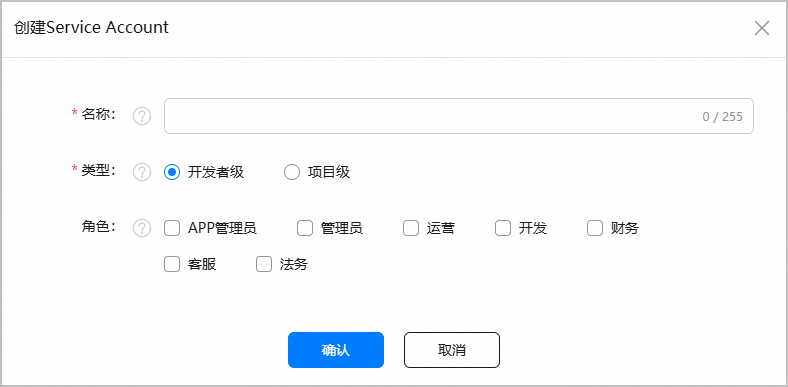
Official example from Huawei's server authorization guide, checked on 2026-09-17. This is a blank configuration dialog, not a real account or private key. The Chinese option “开发者级” means developer-level.
- Open AppGallery Connect and check the developer team.
- Navigate to Users and permissions → API key → Connect API → Service Account. Console labels may differ by language.
- Create developer-level credentials with the role needed to manage listing materials. The existing setup flow uses Operations; review the current role description and any linked permissions before confirming.
- Download the full private JSON file and store it privately. If creation redirects to login, check the account list after signing in before creating a duplicate.
- In Store Sync Settings, select Huawei and Service Account, import the JSON, then verify and save. You do not need an App ID to save the credential.
Match the fields
| Credential / field | Purpose |
|---|---|
| Service Account JSON | Supplies keyId, subAccount and privateKey to the plugin |
| App ID | Identifies the app in the publishing profile; not a credential |
| API client Client ID / Secret | Separate legacy authentication mode |
| agconnect-services.json / app secret | Not the required publishing credential |
| Huawei Cloud IAM AK/SK | Not used by this workflow |
Developer-level access is not restricted simply by entering an App ID in your profile. Reuse the credential only for apps it is authorized to access.
Existing API client
If using existing API-client credentials, choose the plugin's API Client mode and enter Client ID and Client Secret. Confirm that the client is developer-level (the existing setup uses project N/A), not project-level. Do not paste Service Account fields into this form.
For current creation options, role requirements and credential format, follow Huawei's server authorization guide.
Validate the app
After credential verification, select the saved publishing profile and preflight its App ID, package and version. Verification does not upload images or submit a review. Check the material-save result in AGC and submit review manually when ready.
Common problems
- No Huawei option: update to a version that includes HarmonyOS support and reconnect the website.
- Invalid JSON: use the complete credential download, not a copied identifier or SDK configuration file.
- 401/403: check the team, credential status, developer-level type, role, network and device time.
- Authentication succeeds but saving fails: check the target app, editable version, selected locales and asset requirements.
Rotate and revoke
For planned rotation, verify the replacement first, then disable or delete the old key in AGC after checking other tools using it. If a private file is lost, an identifier cannot reconstruct it. Adding a key is not the same as downloading the previous key.
Deleting local credentials does not revoke the provider credential.
Plugin fields and Huawei's official creation/authentication instructions were checked on 2026-09-17. Huawei recommends Service Account for new credentials; API Client is the compatibility path. Role requirements depend on the APIs used, so check the current role description before granting access. Back to Store Sync.