 AppScreenshots Docs
Templates
Start from a structured visual system, match the target platform, and customize the template without losing the story.
Start faster with templates
Templates are reusable screenshot structures. They can include a sequence of frames, layout choices, device treatment, and a platform-oriented canvas configuration. Use them to move from an approved brief to a coherent first pass quickly.
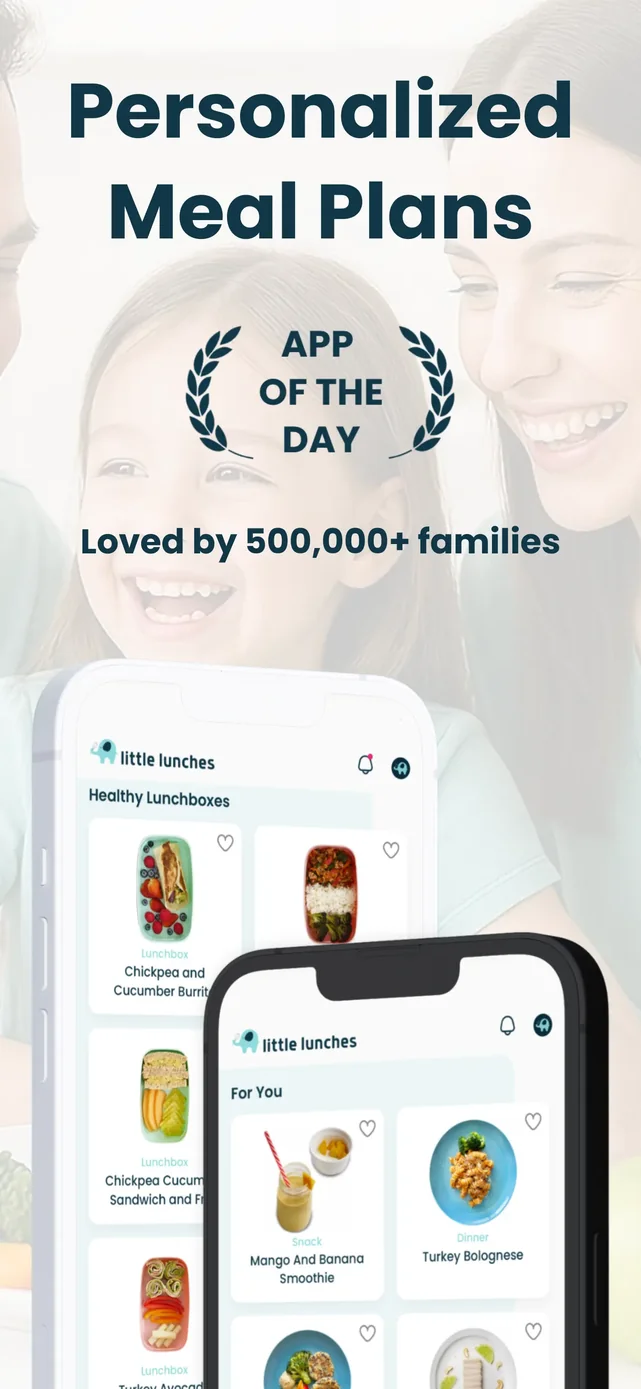
Current English template-preview reference. A template gives you the structural starting point; replace its screens, copy, colors, and supporting assets before delivery.
Where to find templates
You can browse Templates before opening a project, or open Templates from the Screenshot Editor’s left rail. The editor organizes templates by product category and relevant device type.
Select a template with intent
Evaluate a template against the work you need to deliver:
| Check | Why it matters |
|---|---|
| Platform and proportion | A phone, tablet, Android, or browser layout should fit the destination you are preparing. |
| Text capacity | The layout needs room for your longest approved headline and future translations. |
| Product-screen emphasis | The device should show meaningful UI at a usable size. |
| Story shape | A multi-frame template should support—not dictate—the order of your messages. |
| Brand fit | Changeable colors and supporting elements should get you close to your visual system without a full rebuild. |
Apply safely
When you choose a template inside the editor, confirm the application prompt. Applying it replaces the current frames and content.
Use one of these safe approaches:
- Choose the template before you start editing.
- Save the current project before testing a template.
- Duplicate an existing project in the dashboard, then test the new direction in the duplicate.
Customize without flattening the design
After applying a template, work in this order:
- Replace every sample screen with a real capture.
- Replace headlines with your approved frame-by-frame messages.
- Apply brand colors and assets through Background, Elements, and Uploads.
- Remove unnecessary decoration before adding new effects.
- Check every frame in the sequence at a smaller zoom level.
Some templates can be included with a paid plan or unlocked separately. The template interface shows the applicable access path; keep project planning separate from a particular template until access is confirmed.
Next: Work in the Screenshot Editor or Manage projects and backups.