App Store Header Image: Sizes and Upload Checklist
Check App Store header image and search result asset dimensions, formats and cropping rules with current Apple specifications and an upload checklist.
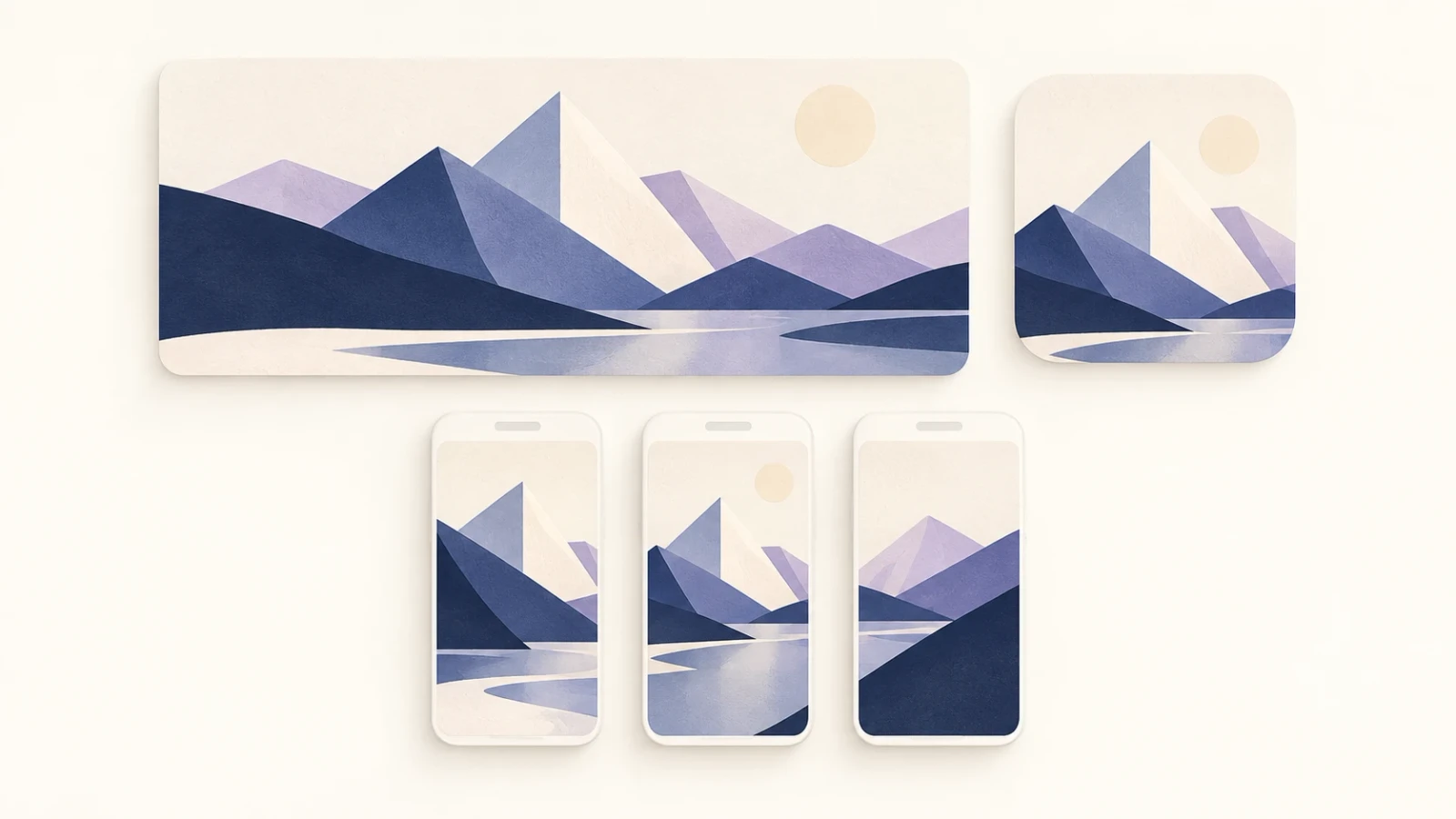
An App Store header image is a creative asset for the top of an app's product page. It is separate from the regular screenshot gallery and from a Google Play feature graphic. Prepare the right image for the intended placement, then inspect the crop in App Store Connect before submitting it.
Apple's current creative asset specification lists product-page header and search-results placements. The table below was checked on October 11, 2026. Use the linked specification when preparing a new release because accepted formats and placement behavior can change.
App Store header image dimensions
| Placement | Aspect ratio listed by Apple | Image resolution | Supported extensions |
|---|---|---|---|
| Product-page header | 21:9 | 3840 × 1646 px | .jpeg, .jpg, .png |
| Search results | 3:2 | 1920 × 1280 px minimum; 3840 × 2560 px maximum | .jpeg, .jpg, .png |
| Shared image option for either placement | 16:9 | 5244 × 2950 px | .png |
Apple does not allow alpha channels or transparency in these images. A shared 16:9 source does not mean that the two placements display the same crop. Check each placement rather than assuming that one successful preview covers both.
Header image, screenshots and Feature Graphic are different
Regular App Store screenshots demonstrate the supported device experience and follow screenshot-specific accepted sizes. A header is a separate creative placement with its own aspect ratio and crop.
The Google Play feature graphic is a 1024 × 500 image for Play. Resizing that file to Apple's header resolution does not create a good header automatically. The composition, visible area and destination store need their own review.
An App Store badge is different again: it is official marketing artwork used to link to your app. Use the badge resource page for official downloads and identity guidelines rather than putting a badge into every store asset.
Design for the visible crop
Choose one clear product idea. Keep essential content away from the outer edges, then use the destination preview to determine what remains visible. Apple's asset best practices explain how creative assets should represent the product and how a shared asset can support consistent presentation.
Do not treat a device frame's apparent size in the design editor as proof of the final crop. Inspect the placed image at the sizes shown in the console. If a headline or important app control is obscured, revise the layout rather than simply adding more pixels to the same composition.
Use real product artwork that you have the right to publish. Avoid implying an Apple endorsement, an unsupported feature or a result your app cannot deliver.
If you use video instead of an image
The current creative-asset table accepts header and search-result videos from 5 to 30 seconds at 30 or 60 fps in .mov, .m4v or .mp4. These are creative-placement video rules. They are different from regular App Preview rules, which the video dimensions section explains.
Apple says these videos are muted by default. People can unmute a product-page video, while search-result video currently cannot be unmuted. Make the visual understandable without relying on a spoken explanation.
This article covers preparation and checking. It does not claim that the AppScreenshots image editor creates or exports these video formats.
Upload checklist for Header and search assets
- Confirm the intended placement and its current accepted specification.
- Keep a high-resolution source design and export the required image file.
- Inspect the actual dimensions, extension and alpha-channel status.
- Confirm which localization or listing context the asset will serve.
- Add it using the current App Store asset workflow.
- Inspect Header and search previews separately, including any shared-image crop.
- Complete the destination submission and review steps required by the console.
Keep the original export beside the final approved preview. That makes future changes easier to evaluate and helps distinguish an export issue from a placement or review issue.
Frequently asked questions
Can I use the same image for Header and search results?
Apple lists a 5244 × 2950 PNG option for both placements. Use that option only after checking both previews; their displayed crops can differ.
Can the header replace my screenshot gallery?
Treat it as a separate asset. Your regular screenshots still need to satisfy the requirements for the devices your app supports. Review both sections in App Store Connect.
Can I upload a transparent PNG?
Apple's creative-asset specification excludes alpha channels and transparency. Check the exported file rather than assuming a white background in the editor guarantees an opaque export.
Prepare the rest of the listing
Use the screenshot requirements guide for the gallery and the localization checklist for a global release. Keep each asset type's specification and destination preview in the same release record.
Author

Creator of AppScreenshots. Building tools for screenshot design and app-release preparation.
Categories
More Posts

App Store Screenshot Sizes and Preview Video Dimensions
Check App Store, Google Play and Chrome screenshot sizes, plus App Preview video dimensions, formats and counts with official sources.
App Store Localization Checklist for Global Release
Use this App Store localization checklist to check metadata, screenshots, languages and upload readiness before a global release.
App Store Screenshot Requirements: Upload Checklist
Check App Store screenshot requirements, device groups, formats and export QA, with links to current Apple specifications.
Newsletter
Stay Updated
Get the latest app design tips and icon trends delivered to your inbox.